 Vibe Guide
Choose an AI tool
The tool should help save files and run the project; locate its controls first.
Why this milestone?
Choose one tool you can sign into that can work with project files.
Start here1 step · Follow in order
0101Open an AI tool that can edit filesTo checkOpen this stepClose this step
01What do you need, and what should you keep?
Your computer and budget.
You know where to open the folder next.
02What will this step help you do?
Choose one tool you can sign into that can work with project files.
Understand it, then judge for yourself
What does this concept mean?
The tool should help save files and run the project; locate its controls first.
How would you decide in a different situation?
Can work and progress be recovered after allowance runs out?
See a reference answer
It depends on file storage/export, not chat history alone. Locate and back up files and handoff before resuming.
Answer in your own words; if unsure, compare the explanation above and check it against your own project.
03What exactly should you do in this step?
OpenClose
The chosen tool’s official install or workspace entry
Send one action at a time: select and copy its prompt (⌘C on Mac, Ctrl+C on Windows), switch to your tool’s project chat, paste it, replace bracketed fields and send. Wait for the reply and check the stated result before continuing.
Choose one tool from the entries below. Check its official site for your computer and budget.OpenClose
Afterwards, you should see: One suitable tool can work with project files.
Install and sign in using the chosen tool’s instructions, or open your existing tool. Web tools use their online workspace.OpenClose
Afterwards, you should see: You can find the project or chat entry.
Find the message box and ask how to work on a project.OpenClose
Suggested prompt:
I am new. Show me where to select a project folder and whether you can read files, edit them and run the project. Explain the entry only; do not create files.
Afterwards, you should see: You know where to open the folder next.
Official download and install entries · 26 tools
Open “Official site” on the tool’s own website and download the build for your computer. Check current price, system requirements and offers on the official page rather than old tutorials or someone else’s screenshot. Decide personally when a step requires payment, verification or accepting terms.
Desktop apps (a good first pick for beginners)
CodexDesktop tasks · CLI · IDE extension · cloud
Install the desktop app, sign in and open the project folder, or install the official editor extension.
Official site ↗Pricing ↗App ↗IDE ↗
Download the appropriate desktop build; local and cloud tasks use different files and environments.
Claude / Claude CodeDesktop Code tab · CLI · VS Code / JetBrains · web
Open the desktop Code tab and select a local project; use CLI when comfortable with terminals.
Official site ↗Pricing ↗Setup & surfaces ↗
Distinguish ordinary chat from the Code workspace; verify CLAUDE.md / AGENTS.md loading for the installed version.
QoderQoder IDE · CLI · JetBrains plugin · QoderWork desktop tasks
Choose CN or global, install its IDE and sign in with the matching account before opening a folder.
Official site ↗CN pricing ↗Global pricing ↗Products ↗
China and global editions use separate account systems; office tasks do not replace software verification.
TRAETraeCode IDE / SOLO · TraeWork desktop tasks; CLI (China enterprise flagship plan)
Choose the CN or global site, install TraeCode, open the project and choose IDE or SOLO mode.
Official site ↗CN pricing ↗Global pricing ↗SOLO ↗CN CLI 2.0 ↗Global CLI status ↗
SOLO is a mode; TraeWork is another product. CN CLI 2.0 requires the enterprise flagship plan; the global enterprise page still says coming soon. Individuals should start with IDE.
Kimi / Kimi CodeKimi Code Desktop · CLI · VS Code extension
Choose Desktop (macOS / Windows) or the VS Code extension in Code docs, sign in and open a project.
Official site ↗Clients ↗CN membership ↗
Kimi chat and Kimi Code differ; generated results still need runtime verification.
GitHub CopilotCopilot desktop app · IDE extensions · CLI · GitHub
Enable official Copilot in VS Code, sign into GitHub and open the project.
Official site ↗Plans ↗Desktop ↗
GitHub Copilot differs from Microsoft 365 Copilot; subscriptions are not interchangeable.
OpenCodeDesktop app · CLI · IDE extension
Download desktop or install CLI, connect one provider, open the project and test one edit.
Official site ↗Forms & providers ↗Go pricing ↗
Subscription, quotas and data handling vary by provider.
智谱 ZCodeDesktop agent workspace · macOS / Windows / Linux
Download for the OS, connect a BigModel or Z.ai account with model access, open a project and verify one small edit in preview.
Official site ↗Product & plans ↗Install ↗Model configuration ↗FAQ & billing ↗
Compared as a desktop task interface; an embedded terminal is not a standalone CLI. Configure model access in ZCode separately from terminal settings.
AmpmacOS app · CLI · web and cloud Orbs
Choose desktop or CLI from official docs and verify edits and recovery on a small project.
Official site ↗Pricing ↗Billing detail ↗Surfaces ↗
Pricing evolves quickly; official pages differ, so verify checkout before purchase.
Google AntigravityAntigravity 2.0 desktop · IDE / extensions · CLI
Choose desktop or IDE from the official site, sign in with Google, open a project and verify a small edit.
Official site ↗Pricing ↗Plan changes ↗IDE & desktop ↗CLI ↗
Distinct from Gemini CLI; verify individual versus enterprise routes, region and quotas.
Editors (IDE)
CursorDesktop IDE · Cursor CLI
Download Cursor, open the project folder and make one small change with Agent.
A desktop IDE; the project still needs its own runtime setup.
Devin / WindsurfDevin Desktop editor · CLI · Cloud
Install the editor and make a small local edit; verify repository and runtime before cloud work.
Official site ↗Pricing ↗Windsurf redirect ↗
Windsurf now redirects to Devin; old names, prices and links may be stale.
KiroKiro IDE · CLI · web
Install the IDE, sign in and review one small feature specification before execution.
Official site ↗Pricing & surfaces ↗Product ↗
Specs still need review; surfaces share credits and web requires a paid plan.
ClineVS Code extension · CLI
Install the official extension, choose a provider and budget, then approve one small edit.
Official site ↗Pricing & surfaces ↗Get started ↗
Free software does not mean free inference; complex work can cost more.
CodeBuddyIDE · IDE plugins · CLI
Install the appropriate regional IDE, sign in, open the folder and test reading and a small edit.
Official site ↗CN pricing ↗Global pricing ↗CLI ↗
CodeBuddy and WorkBuddy serve different purposes; CN and global pricing differ.
ZedDesktop code editor · external agent connections
Install, open the project, connect an agent or provider and review one edit.
Official site ↗Pricing ↗Download ↗
An editor does not automatically solve dependencies or deployment.
Augment CodeIDE extensions · CLI · Cosmos cloud
Configure an existing repository and start with a well-defined bug or small task.
Official site ↗Current pricing ↗Official IDE extension ↗
Not the shortest path to a first page; use current pricing rather than old posts.
Kilo CodeVS Code / JetBrains extensions · CLI · Cloud
Install the official extension, choose free or low-budget mode and approve one scoped edit.
Official site ↗Pricing ↗Surfaces ↗
Model flexibility adds setup; platform, inference and cloud compute are separate costs.
Command-line tools
Gemini CLICLI · IDE integration; ordinary chat apps are not counted as coding desktop apps
Follow the official quickstart, launch in the project folder and sign in with Google.
Official site ↗Quota & billing ↗Subscriptions ↗
Requires understanding folders, command output and permissions; free usage is limited.
AiderTerminal-first, works alongside an editor
Follow installation docs, start in the project folder and add only files needed for the task.
Official site ↗Usage & Git ↗Models ↗
Not the easiest first tool for terminal newcomers; configure models and keys.
Qwen CodeCLI · VS Code extension (Beta)
Follow current auth docs, choose a provider with /auth and verify with /doctor.
Official site ↗Authentication & billing ↗Repository ↗IDE integration ↗
The old free OAuth tier ended on 2026-04-15; verify old tutorials.
Web workspaces (no installation)
LovableBrowser building workspace; compared here as a web workflow
Create a web project and one page; check export and version history before expanding.
Native mobile/desktop installers are not its primary route; check code and data portability.
ReplitBrowser cloud development workspace; compared here as a web workflow
Create a project, build one previewable flow and check billing and export.
Official site ↗Pricing ↗Core ↗
Track runtime cost alongside agent usage; verify import for existing local projects.
BoltBrowser building workspace
Create a browser project and one interactive page, then check export and billing.
Official site ↗Pricing ↗Help ↗
More project files typically consume more tokens; verify complex backends and migration.
v0Browser UI and app building workspace
Create one page, explain reference elements and review before connecting a repository.
Official site ↗Pricing ↗Docs ↗
A preview does not prove permissions, data or payment flows work.
Base44Browser app-building workspace
Use free access for one page and one save action, check permissions and usage, then verify the plan for GitHub integration.
Official site ↗Plans & product features ↗Docs ↗
GitHub integration depends on plan; verify code, data and service portability before independent maintenance.
Practice: personal journal (frontend + backend + database)
Use the same learning-journal project throughout this example. For your own project, compare applicable requirements without creating another project.
Choose a tool that can access your project files. The official Codex screenshot below locates projects and chats; you may keep another suitable tool.
- What should you see after this step?
- Codex can inspect files and report their actual location.
- What should you do first if you get stuck?
- Use official project instructions if controls differ; a chat alone does not prove project access.
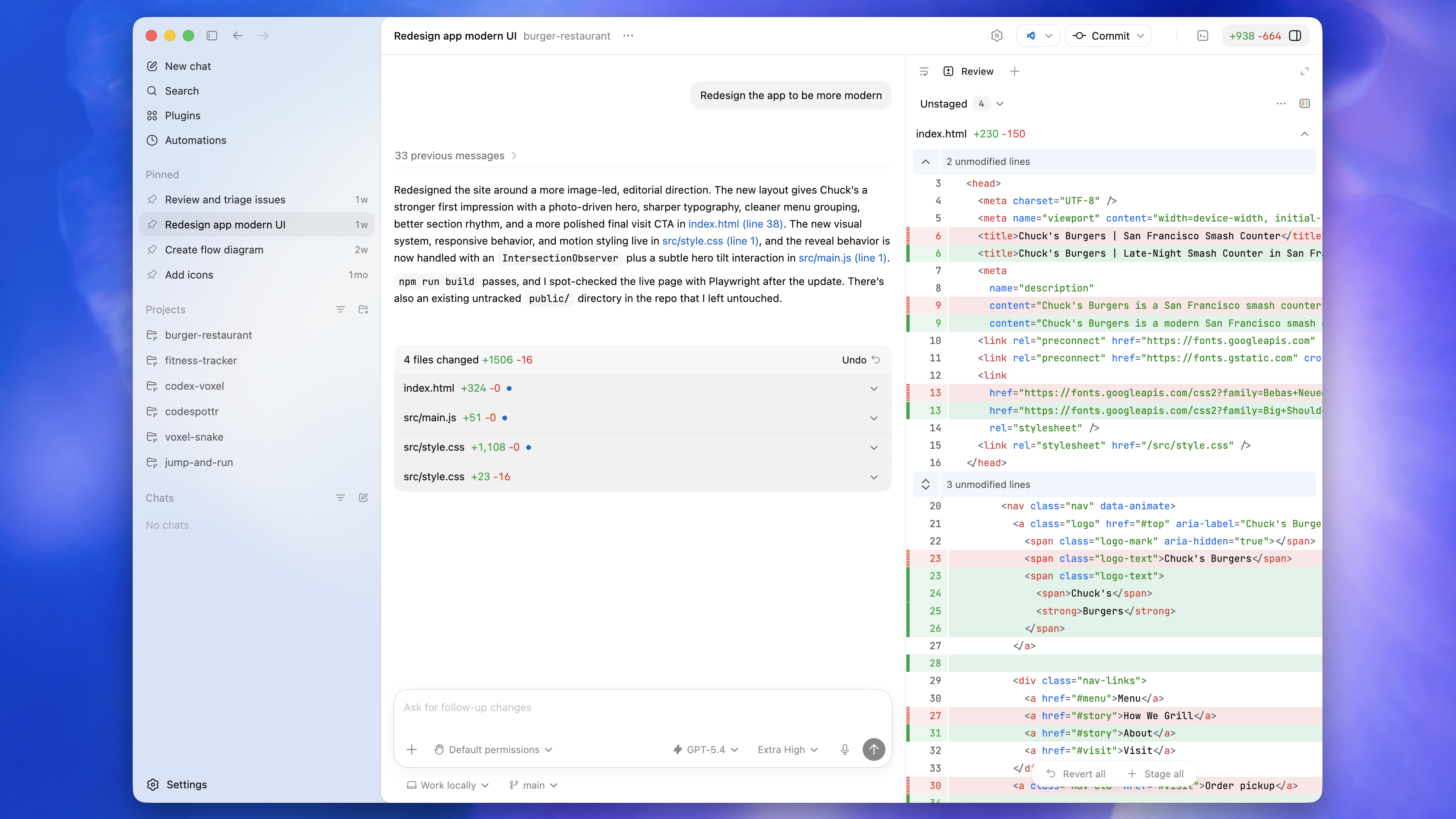
Locate Projects on the left and New chat above it. Open your local folder following current instructions, or select your existing project. Match function names if icons differ.
04Not sure how? Follow each action
OpenClose
Choose one tool from the entries below. Check its official site for your computer and budget.
- What should you see after this action?
- One suitable tool can work with project files.
- What should you do if that result is missing?
- Choose another if unsuitable; you do not need every tool.
Install and sign in using the chosen tool’s instructions, or open your existing tool. Web tools use their online workspace.
- What should you see after this action?
- You can find the project or chat entry.
- What should you do if that result is missing?
- Keep installation/sign-in errors and consult that tool’s official help.
Find the message box and ask how to work on a project.
- What should you see after this action?
- You know where to open the folder next.
- What should you do if that result is missing?
- If files cannot be handled, choose a suitable tool or its supported editor.
05Words in this step
OpenClose
Agent ↗
A system using a model and tools to act toward a goal.
An assistant that can act still needs permission and checks.
IDE ↗
Software combining editing, running, and debugging tools.
A fully equipped workbench.
CLI — Command-line interface ↗
A way to operate software through text commands.
Submit a written instruction instead of pressing a pictured button.
06How should you handle a problem here?
OpenClose
Installation, sign-in, or the screen differs
- Where should you look to understand the problem?
- Check the official source, operating system, and eligibility; keep the exact error.
- Follow these steps to resolve the problem
- Use the tool guide to choose an available option. Look for project/folder functions after a redesign. If absent, retain a screenshot and consult official support; do not paste passwords into chat.
- Expected recovery
- Continue only after reaching a usable project screen; otherwise stay here.
Edit the template with actual material, confirm, then copy into the current project conversation. Mark unknowns as undecided and replace examples as needed.
Confirmed · personalized content ready to copy
I am at “Open an AI tool that can edit files”. Expected: The tool opens and offers project work, not only ordinary web chat.. Actual screen/error: [add here]. Inspect existing files first. Give one reversible action at a time, its location, and expected result. Do not recreate the project or delete existing work.07Material for this step (fill or copy)
OpenClose
Fill your own material below, confirm it and check the result. Follow the actions above for when to give it to your tool. If reopening shows only the editor, review and confirm again to copy.
Edit the template below and confirm to prepare a copyable draft. Use it as directed by this step; sending it to AI is not required.
Confirmed · personalized content ready to copy
Which tools do you want to compare: [fill in]
Were you able to install the tool and sign in: [fill in]
Can you find the project and file controls: [can project and file controls be found]
What does the free allowance cover, and when did you check: [official page/account]
What the subscription costs and whether you can afford it: [fill in]
Can the tool edit files, run the project and check results: [file access, running and checking]
Which tool did you choose, and why: [fill in]Journal practice: fill or supplement this step
Use this as guidance for filling the template with your real information. Never copy example acceptance, costs, paths or test results.
Record Codex, your actual OS, sign-in and file-access results; check costs in your own account.
08Check this before continuing
The tool opens and offers project work, not only ordinary web chat.
09What should you do if the expected result is missing?
OpenClose
Choose another if unsuitable; you do not need every tool.
Compare with an example (illustration, not your result)
Evidence: actual project files and supported checks, not merely a promise to help.
Words in this milestoneIn order of appearance; open for the full explanation
More troubleshooting references
Tools and rules: troubleshooting
2 situationsThese paths synthesize official docs and public reports, not frequency data. Check the symptom and verify the result.
AI says it edited a file, but no file exists
Observed symptom: Chat returns code without changing the project.
- What should you check first?
Check whether the mode can edit files and identify its working directory.
- Then resolve
Open the actual project folder. Ask AI to create tool-check.md with one test line and read it back; remove the test file afterward.
- Verify the result
The file list and read-back show the same file and text.
Edit the template with actual material, confirm, then copy into the current project conversation. Mark unknowns as undecided and replace examples as needed.
Confirmed · personalized content ready to copy
I am blocked at: AI says it edited a file, but no file exists.
Project and tool: [name, version, and project path]
Observed behavior: [steps, exact error, or screenshot; remove secrets and personal data]
Expected result: [actual goal]
First inspect: Check whether the mode can edit files and identify its working directory.
Proposed approach: Open the actual project folder. Ask AI to create tool-check.md with one test line and read it back; remove the test file afterward.
Explain the evidence and cause before making the smallest relevant fix. Preserve existing changes and do not add features. If I must act, give one precise action at a time and its expected visible result.
Success criteria: The file list and read-back show the same file and text.
Report actual checks, unchecked items, and the next step.
If a temporary check file is needed, verify the name is unused. Remove only that newly created check file; preserve all existing files.ReferencesLovable · Project chat and debugging ↗
Rules exist but are not followed
Observed symptom: AI changes excluded files or forgets the start command.
- What should you check first?
Check the plural filename AGENTS.md, directory, tool version, and loaded instructions.
- Then resolve
Ask AI to read and restate three rules. Claude Code support is conditional; check imports when CLAUDE.md exists. Older versions can import @AGENTS.md from CLAUDE.md. Remove conflicting rules.
- Verify the result
A new task identifies the rule source and follows it on a small edit; restating rules is not enforcement.
Edit the template with actual material, confirm, then copy into the current project conversation. Mark unknowns as undecided and replace examples as needed.
Confirmed · personalized content ready to copy
I am blocked at: Rules exist but are not followed.
Project and tool: [name, version, and project path]
Observed behavior: [steps, exact error, or screenshot; remove secrets and personal data]
Expected result: [actual goal]
First inspect: Check the plural filename AGENTS.md, directory, tool version, and loaded instructions.
Proposed approach: Ask AI to read and restate three rules. Claude Code support is conditional; check imports when CLAUDE.md exists. Older versions can import @AGENTS.md from CLAUDE.md. Remove conflicting rules.
Explain the evidence and cause before making the smallest relevant fix. Preserve existing changes and do not add features. If I must act, give one precise action at a time and its expected visible result.
Success criteria: A new task identifies the rule source and follows it on a small edit; restating rules is not enforcement.
Report actual checks, unchecked items, and the next step.ReferencesClaude Code · Project instructions ↗Reddit · Original ignored-instructions report ↗
References for this milestone
Open these when the question arises; they are not extra required actions.
- Which AI tool and what budget?
Before starting, or when the current tool cannot perform the task.
My project material and backups
Material stays in this browser, not in project files or AI chat. Chinese and English template drafts are separate; project selection and progress are shared. Do not enter passwords or API keys here.
Includes idea, progress, template drafts, personal checks and selection conditions, but not project code. Restore creates a new draft and preserves existing projects.
Download/import unavailable? Restore backup text
Draft and progress stay in this browser.
Complete the actions in order; expand the matching checks and remedies if you get stuck.