 Vibe Guide
Build and test incrementally
A preview opens the work in progress so you can see its real pages and behavior.
Why this milestone?
Build from the first task and inspect each result before continuing.
Start here4 steps · Follow in order
0104Open the first page of the projectTo checkOpen this stepClose this step
01What do you need, and what should you keep?
Your runnable minimal project and the first development task.
Task status reflects actual progress.
Which files should AI read and save in this step?
In your tool’s project chat, ask it to open the files below. If a file is missing, follow the link back to the step that creates it.
Ask AI to read these materials first: docs/requirements.md · docs/stories.md · docs/design.md · tasks/todo.md · README.md
Ask AI to save the result to: tasks/todo.md · docs/checks.md
Missing these materials? Return to the step that creates them →
02What will this step help you do?
Build from the first task and inspect each result before continuing.
Understand it, then judge for yourself
What does this concept mean?
A preview opens the work in progress so you can see its real pages and behavior.
How would you decide in a different situation?
Why might the URL fail after its process stops?
See a reference answer
The local URL is served by the running process. Restart it using README instead of rebuilding the project.
Answer in your own words; if unsure, compare the explanation above and check it against your own project.
03What exactly should you do in this step?
OpenClose
The preview URL or HTML file AI provides
Send one action at a time: select and copy its prompt (⌘C on Mac, Ctrl+C on Windows), switch to your tool’s project chat, paste it, replace bracketed fields and send. Wait for the reply and check the stated result before continuing.
Have the tool do the next unfinished task only.OpenClose
Suggested prompt:
Read tasks/todo.md and identify the next task whose prerequisites are ready. Explain and complete only that task. Preserve other files and report how to open and test it.
Afterwards, you should see: You receive a change summary and working entry.
Open the project and try this feature yourself.OpenClose
Afterwards, you should see: The result matches the task or you can name the difference.
Report what happened before continuing.OpenClose
Suggested prompt:
My actions and results: 【fill in】. Update tasks/todo.md and docs/checks.md; complete only checked tasks. Save the confirmed changes as a local revision without pushing.
Afterwards, you should see: Task status reflects actual progress.
Practice: personal journal (frontend + backend + database)
Use the same learning-journal project throughout this example. For your own project, compare applicable requirements without creating another project.
Ask Codex to implement only the first page task and open its actual HTTP URL. Inputs and a list placeholder are enough; saving is not ready yet.
- What should you see after this step?
- The page uses HTTP and clearly says persistence is not connected.
- What should you do first if you get stuck?
- A double-clicked file URL is not this full-stack entry; use the running service URL.
04Not sure how? Follow each action
OpenClose
Have the tool do the next unfinished task only.
- What should you see after this action?
- You receive a change summary and working entry.
- What should you do if that result is missing?
- If unrelated work was added, review it and return to the agreed task.
Open the project and try this feature yourself.
- What should you see after this action?
- The result matches the task or you can name the difference.
- What should you do if that result is missing?
- Report the URL and error if it will not open; keep unavailable tests pending.
Report what happened before continuing.
- What should you see after this action?
- Task status reflects actual progress.
- What should you do if that result is missing?
- Record failures and follow the feedback/repair steps.
05Words in this step
OpenClose
Iteration ↗
A round of improvement based on feedback.
Revise the breakfast menu after customer feedback.
Commit ↗
A traceable record of versioned changes.
Number a revision and explain its changes.
06How should you handle a problem here?
OpenClose
The preview will not open
- Where should you look to understand the problem?
- Use the full URL and check with AI whether the preview service is running.
- Follow these steps to resolve the problem
- Give AI the URL and exact browser error. Ask for an actual service and port check; keep the start process running rather than guessing another port.
- Expected recovery
- The verified address opens the project title.
Edit the template with actual material, confirm, then copy into the current project conversation. Mark unknowns as undecided and replace examples as needed.
Confirmed · personalized content ready to copy
I am at “Open the first page of the project”. Expected: The browser shows the project, and its opening method is known.. Actual screen/error: [add here]. Inspect existing files first. Give one reversible action at a time, its location, and expected result. Do not recreate the project or delete existing work.07Material for this step (fill or copy)
OpenClose
If you completed the individual prompts above, do not resend this full template. Use it to organize this step’s material when needed; replace bracketed fields, confirm and copy into the project chat.
Edit the template with actual material, confirm, then copy into the current project conversation. Mark unknowns as undecided and replace examples as needed.
Confirmed · personalized content ready to copy
First check access to docs/requirements.md, docs/stories.md, docs/design.md, tasks/todo.md, README.md. If missing or inaccessible, identify the prerequisite and owner action, then stop rather than invent prior work.
Read project rules, requirements, design and tasks/todo.md. Reuse the verified runtime and implement only the first unfinished development task. Ask if unclear or too broad to check here. Execute that task’s checks, give the real preview entry and instructions, and update its status. Do not reinitialize, execute later tasks or publish. Record requirement/task IDs, actual checks and untested work in docs/checks.md. Mark awaiting personal review first; mark passed only after the user reports success, then save only this task’s local revision and safe recovery instructions while preserving unrelated work.Journal practice: fill or supplement this step
For this full-stack practice only: use this combined prompt, fill its fields and send it once instead of also sending the generic template. It does not authorize later steps.
Edit the template with actual material, confirm, then copy into the current project conversation. Mark unknowns as undecided and replace examples as needed.
Confirmed · personalized content ready to copy
First check access to docs/requirements.md, docs/stories.md, docs/design.md, tasks/todo.md, README.md. If missing or inaccessible, identify the prerequisite and owner action, then stop rather than invent prior work.
Read project rules, requirements, design and tasks/todo.md. Reuse the verified runtime and implement only the first unfinished development task. Ask if unclear or too broad to check here. Execute that task’s checks, give the real preview entry and instructions, and update its status. Do not reinitialize, execute later tasks or publish. Record requirement/task IDs, actual checks and untested work in docs/checks.md. Mark awaiting personal review first; mark passed only after the user reports success, then save only this task’s local revision and safe recovery instructions while preserving unrelated work.

I selected the full-stack journal practice.
Implement only the planned page task, make disconnected saving clearly unavailable and avoid localStorage or fake success. Return the real HTTP entry; leave backend tasks to save.08Check this before continuing
The browser shows the project, and its opening method is known.
09What should you do if the expected result is missing?
OpenClose
If unrelated work was added, review it and return to the agreed task.
Compare with an example (illustration, not your result)
T01 entry checked; T02 booking pending; T03 cancel pending → full acceptance is not yet possible.
Record this check and project version
This is self-reported, not automatic inspection. Old checks do not prove a changed version; complete or report failed and untested work.
0204Adjust this page onlyTo checkOpen this stepClose this step
01What do you need, and what should you keep?
Your open project page and one thing to improve.
The page is usable and the original feature still works.
Which files should AI read and save in this step?
In your tool’s project chat, ask it to open the files below. If a file is missing, follow the link back to the step that creates it.
Ask AI to read these materials first: docs/design.md · tasks/todo.md
Ask AI to save the result to: docs/checks.md
Missing these materials? Return to the step that creates them →
02What will this step help you do?
Make labels, fields and buttons understandable and easy to find.
Understand it, then judge for yourself
What does this concept mean?
The interface is what people see and use; fix one specific problem here.
How would you decide in a different situation?
Which action became easier?
See a reference answer
Name an actual improvement, such as discoverable booking or clear errors, beyond visual preference.
Answer in your own words; if unsure, compare the explanation above and check it against your own project.
03What exactly should you do in this step?
OpenClose
The preview and project conversation
Send one action at a time: select and copy its prompt (⌘C on Mac, Ctrl+C on Windows), switch to your tool’s project chat, paste it, replace bracketed fields and send. Wait for the reply and check the stated result before continuing.
Open your project and locate one confusing place, such as an unlabeled field or overlapping button.OpenClose
Afterwards, you should see: You can name the page and location to change.
Tell the tool the problem and desired result.OpenClose
Suggested prompt:
Change only 【page/location】. It currently looks like 【actual】; I need 【specific result】. Preserve other pages/features and give me the review URL.
Afterwards, you should see: The updated page opens.
Try the feature again and narrow the window to check text, fields and buttons.OpenClose
Afterwards, you should see: The page is usable and the original feature still works.
Practice: personal journal (frontend + backend + database)
Use the same learning-journal project throughout this example. For your own project, compare applicable requirements without creating another project.
Compare title, body, button and messages with the prototype; try a narrow viewport.
- What should you see after this step?
- Fields are labeled; Save and feedback are visible without clipped text.
- What should you do first if you get stuck?
- If the design is met, record the check rather than forcing cosmetic changes.
04Not sure how? Follow each action
OpenClose
Open your project and locate one confusing place, such as an unlabeled field or overlapping button.
- What should you see after this action?
- You can name the page and location to change.
- What should you do if that result is missing?
- Fix a specific usability problem rather than requesting a complete redesign.
Tell the tool the problem and desired result.
- What should you see after this action?
- The updated page opens.
- What should you do if that result is missing?
- Describe the remaining difference and keep the fix focused.
Try the feature again and narrow the window to check text, fields and buttons.
- What should you see after this action?
- The page is usable and the original feature still works.
- What should you do if that result is missing?
- Record any overlap or failed click and request a focused repair.
05Words in this step
OpenClose
Component ↗
A reusable or independently described interface unit.
Building blocks also need connection rules.
State ↗
Data and conditions determining current behavior.
A counter can be open, busy, or paused.
Accessibility / A11y ↗
Making a product usable with varied abilities and interaction methods.
A ramp provides an alternative to stairs.
06How should you handle a problem here?
OpenClose
A visual edit changed other behavior
- Where should you look to understand the problem?
- Compare with the previous working version and identify one change.
- Follow these steps to resolve the problem
- Ask AI to compare changes and fix only the affected behavior. Explain recovery impact before overwriting new work.
- Expected recovery
- The appearance fits and the original save flow still works.
Edit the template with actual material, confirm, then copy into the current project conversation. Mark unknowns as undecided and replace examples as needed.
Confirmed · personalized content ready to copy
I am at “Adjust this page only”. Expected: Relevant interface edits are checked and existing behavior works; headless projects record not applicable.. Actual screen/error: [add here]. Inspect existing files first. Give one reversible action at a time, its location, and expected result. Do not recreate the project or delete existing work.07Material for this step (fill or copy)
OpenClose
If you completed the individual prompts above, do not resend this full template. Use it to organize this step’s material when needed; replace bracketed fields, confirm and copy into the project chat.
Edit the template with actual material, confirm, then copy into the current project conversation. Mark unknowns as undecided and replace examples as needed.
Confirmed · personalized content ready to copy
First check access to docs/design.md, tasks/todo.md. If missing or inaccessible, identify the prerequisite and owner action, then stop rather than invent prior work.
Page and location: [fill in]
What happens here now, and what does not meet your needs: [fill in]
Desired change: [concrete result]
Change only this interface location, following the agreed design and preserving unrelated features and data logic. Provide a preview and check both the requested result and affected existing actions. Report actual results.Journal practice: fill or supplement this step
For this full-stack practice only: use this combined prompt, fill its fields and send it once instead of also sending the generic template. It does not authorize later steps.
Edit the template with actual material, confirm, then copy into the current project conversation. Mark unknowns as undecided and replace examples as needed.
Confirmed · personalized content ready to copy
First check access to docs/design.md, tasks/todo.md. If missing or inaccessible, identify the prerequisite and owner action, then stop rather than invent prior work.
Page and location: [fill in]
What happens here now, and what does not meet your needs: [fill in]
Desired change: [concrete result]
Change only this interface location, following the agreed design and preserving unrelated features and data logic. Provide a preview and check both the requested result and affected existing actions. Report actual results.

I selected the full-stack journal practice.
Check or adjust labels, layout and status messages only, preserving fields and API agreement; do not claim working persistence before connection.08Check this before continuing
Relevant interface edits are checked and existing behavior works; headless projects record not applicable.
09What should you do if the expected result is missing?
OpenClose
Fix a specific usability problem rather than requesting a complete redesign.
Compare with an example (illustration, not your result)
Location: event booking button. Prevent repeat submission while loading; explain errors and allow retry; show the real result.
Examples and reference
Move Save below the input without changing storage or the history list.
Record this check and project version
This is self-reported, not automatic inspection. Old checks do not prove a changed version; complete or report failed and untested work.
0304Make Save retain real contentTo checkOpen this stepClose this step
01What do you need, and what should you keep?
Your input page and the agreed storage requirements.
The entry remains in the storage location promised by the design, with its original content.
Which files should AI read and save in this step?
In your tool’s project chat, ask it to open the files below. If a file is missing, follow the link back to the step that creates it.
Ask AI to read these materials first: docs/requirements.md · docs/design.md · tasks/todo.md
Ask AI to save the result to: docs/checks.md
Missing these materials? Return to the step that creates them →
02What will this step help you do?
Store entered content so it can be found after the page closes.
Understand it, then judge for yourself
What does this concept mean?
After a success message, check the real record and read it after reopening.
How would you decide in a different situation?
How can persistence beyond the current screen be proven?
See a reference answer
Read from the intended storage, close/reopen, and test another user/device if sharing is required.
Answer in your own words; if unsure, compare the explanation above and check it against your own project.
03What exactly should you do in this step?
OpenClose
The project field, Save button, and history
Send one action at a time: select and copy its prompt (⌘C on Mac, Ctrl+C on Windows), switch to your tool’s project chat, paste it, replace bracketed fields and send. Wait for the reply and check the stated result before continuing.
Prepare real storage. A database keeps records after the page closes. If no storage is needed, skip this step. For browser-only storage, follow that design without adding a backend or database. Database actions apply only when the design requires one.OpenClose
Suggested prompt:
Read the requirements and inspect storage. If a database is needed, inspect existing content, create only missing tables and report its location and record fields. Do not erase data.
Afterwards, you should see: You know where records live and what they contain.
If your design uses a backend: Make the backend save and read records. It is the program processing page requests.OpenClose
Suggested prompt:
Implement or inspect save-one and read-list endpoints. Test a record, report its ID and verify the matching database record. Reject blank input.
Afterwards, you should see: A valid record has a matching database ID; blank input is not inserted.
If your design uses a backend: Connect the page’s Save button to the checked backend.OpenClose
Suggested prompt:
Connect Save to the checked backend. Prevent repeat pending clicks, keep input on failure and show success only after saving. Give me the test URL.
Afterwards, you should see: One save produces a record you can find in the list.
Save a recognizable test entry such as “save test 001”, refresh and reopen the page to find it. Use another browser only if the design calls for shared backend data; check browser-only data in the original browser.OpenClose
Afterwards, you should see: The entry remains in the storage location promised by the design, with its original content.
Practice: personal journal (frontend + backend + database)
Use the same learning-journal project throughout this example. For your own project, compare applicable requirements without creating another project.
Follow section 03 above: prepare storage, check the backend, connect the page, then reopen and read the record. Review each result before sending the next task to your chosen tool.
- What should you see after this step?
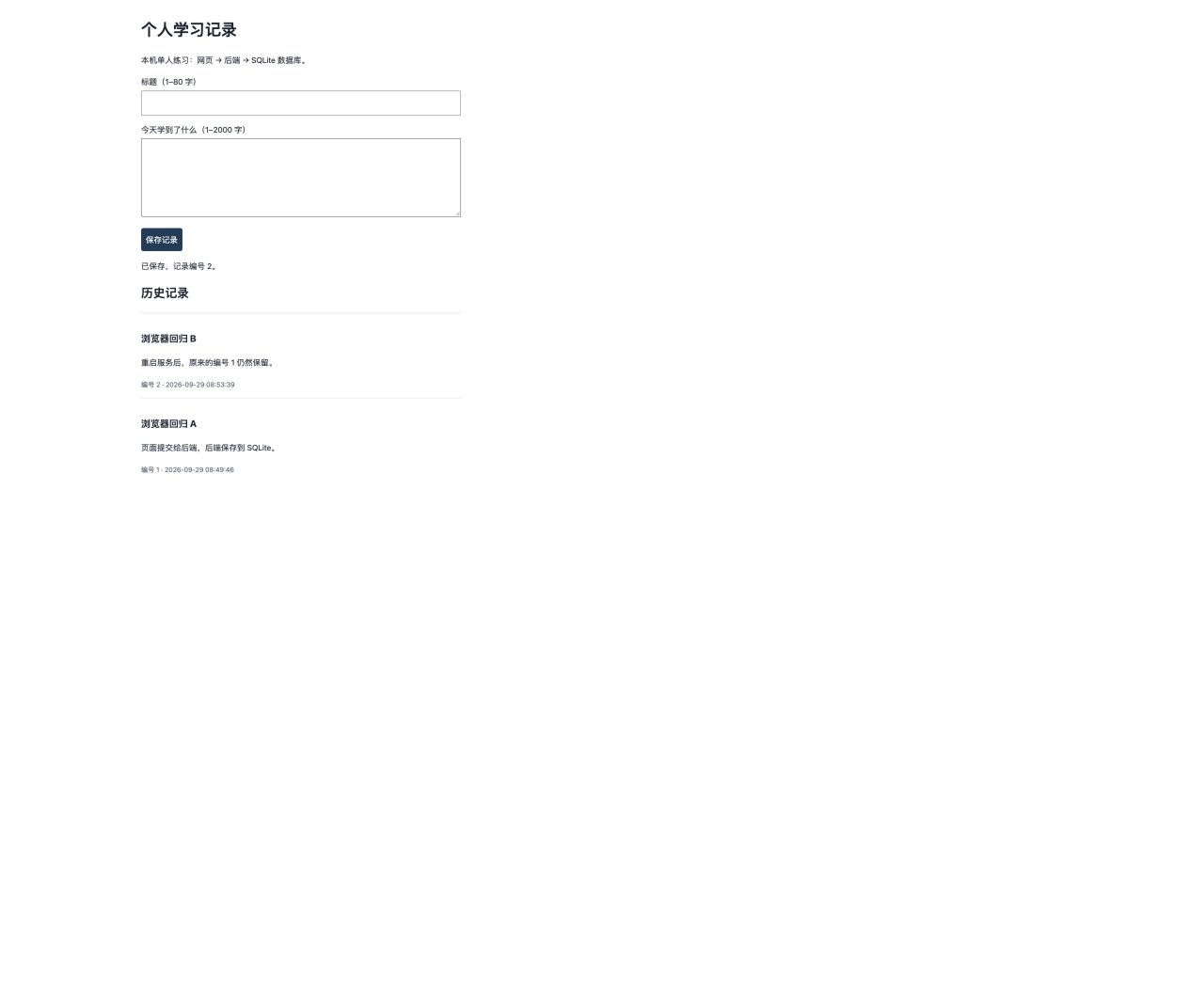
- Saving “Practice A” produces a real record ID readable from a second browser on the same service.
- What should you do first if you get stuck?
- A new row on screen is insufficient; verify the same ID in the actual SQLite file without clearing/recreating it.
Match an error to the next action
Save returns 404 or HTML
- What should you check first?
- Check whether /api/entries reaches the running Flask service.
- Follow these steps to resolve the problem
- Give Codex the actual URL, request path and service log to compare routes; this example serves page and API together.
- What should you see after the problem is resolved?
- GET returns a list; a valid POST returns a record ID.
CORS / cross-origin error
- What should you check first?
- Check whether the page came from file:// or another port.
- Follow these steps to resolve the problem
- Use the Flask HTTP URL and relative /api/entries. Do not disable browser security; separate-service projects need approved origins in their design.
- What should you see after the problem is resolved?
- The same-service request is no longer blocked.
no such table: entries
- What should you check first?
- An existing database file may lack its table; check its full path first.
- Follow these steps to resolve the problem
- Run the agreed non-destructive setup on the correct file; do not delete the database or copy table-dropping examples.
- What should you see after the problem is resolved?
- entries exists and old data is retained.
database is locked
- What should you check first?
- Check for another test service, editor or unfinished write holding the file.
- Follow these steps to resolve the problem
- Stop only a confirmed practice owner and inspect transaction/connection cleanup; do not delete lock files or the database.
- What should you see after the problem is resolved?
- Writing recovers while old records remain readable.
Success appears, but refresh loses the record
- What should you check first?
- Record a unique title, URL and ID; check whether only the page or browser cache was updated.
- Follow these steps to resolve the problem
- Read-only compare save response, database record and list response to locate the loss. Show success only after real backend persistence.
- What should you see after the problem is resolved?
- Database, read endpoint and refreshed page show the same test record.
The URL refuses the connection
- What should you check first?
- Compare the URL with this project’s startup output and check that the service is running. A port is the service number after the colon.
- Follow these steps to resolve the problem
- Give the URL and recent startup error to the tool. Start this project as documented; for an occupied port identify its owner, choose a free port and update the URL rather than stopping unknown processes.
- What should you see after the problem is resolved?
- The service remains running and its actual URL opens the page; then check saving.
Save reports failure, but the record exists
- What should you check first?
- The server may have saved before the response was lost; search the unique title in the list and database.
- Follow these steps to resolve the problem
- Do not submit again yet. Give the existing ID and error to the tool; inspect response handling and repeat-submission protection. Compare IDs and content rather than deleting matching titles.
- What should you see after the problem is resolved?
- The submission outcome is established, feedback is accurate and old records remain.
- Table: report full database path, entries and fields; startup must preserve records.
- API: GET reads, POST submits. Test saving and its returned ID, then rejection of spaces-only input.
- Connect: Save sends to /api/entries on the same service. Show success only after persistence; retain input on failure.
- Read back: open the running URL in another browser and find the same ID. Codex checks the database read-only; you need not learn SQL first.
04Not sure how? Follow each action
OpenClose
Prepare real storage. A database keeps records after the page closes. If no storage is needed, skip this step. For browser-only storage, follow that design without adding a backend or database. Database actions apply only when the design requires one.
- What should you see after this action?
- You know where records live and what they contain.
- What should you do if that result is missing?
- Ask for the actual location/table if the response only says done.
If your design uses a backend: Make the backend save and read records. It is the program processing page requests.
- What should you see after this action?
- A valid record has a matching database ID; blank input is not inserted.
- What should you do if that result is missing?
- Keep the error and check whether the request reached the backend.
If your design uses a backend: Connect the page’s Save button to the checked backend.
- What should you see after this action?
- One save produces a record you can find in the list.
- What should you do if that result is missing?
- Match its ID to the database rather than trusting an extra on-screen row.
Save a recognizable test entry such as “save test 001”, refresh and reopen the page to find it. Use another browser only if the design calls for shared backend data; check browser-only data in the original browser.
- What should you see after this action?
- The entry remains in the storage location promised by the design, with its original content.
- What should you do if that result is missing?
- Check URL, account and storage location without deleting data.
05Words in this step
OpenClose
Database ↗
A system for storing, retrieving, and updating data.
A ledger office supporting structured lookup.
API ↗
An interface for programs to request capabilities and exchange data.
A menu defines available requests and required details.
Authorization ↗
Determines what an identity may do.
Verified identity still needs permission for each door.
06How should you handle a problem here?
OpenClose
Cannot save, or records vanish on refresh
- Where should you look to understand the problem?
- Compare the full URL and browser. localhost versus 127.0.0.1, different ports, or private windows may use different storage.
- Follow these steps to resolve the problem
- Return to the original browser and full URL. If still missing, preserve input and errors, send the help material, and ask AI to inspect actual writes and reads. Do not clear browser data.
- Expected recovery
- A new test record survives refresh in the same location; state separately whether old data was recovered.
Edit the template with actual material, confirm, then copy into the current project conversation. Mark unknowns as undecided and replace examples as needed.
Confirmed · personalized content ready to copy
I am at “Make Save retain real content”. Expected: Required saving and reading are verified, or storage is explicitly not applicable.. Actual screen/error: [add here]. Inspect existing files first. Give one reversible action at a time, its location, and expected result. Do not recreate the project or delete existing work.07Material for this step (fill or copy)
OpenClose
If you completed the individual prompts above, do not resend this full template. Use it to organize this step’s material when needed; replace bracketed fields, confirm and copy into the project chat.
Edit the template with actual material, confirm, then copy into the current project conversation. Mark unknowns as undecided and replace examples as needed.
Confirmed · personalized content ready to copy
First check access to docs/requirements.md, docs/design.md, tasks/todo.md. If missing or inaccessible, identify the prerequisite and owner action, then stop rather than invent prior work.
Read requirements and design to confirm whether persistent storage is required. If not, mark this step not applicable and stop without adding it. Otherwise implement only agreed saving and reading, using required inputs and access rules. Do not add history, login or cloud services without a requirement. Use disposable test data to check saving, reopening and applicable failures. Report actual and unverified results.Journal practice: fill or supplement this step
For this full-stack practice only: use this combined prompt, fill its fields and send it once instead of also sending the generic template. It does not authorize later steps.
Edit the template with actual material, confirm, then copy into the current project conversation. Mark unknowns as undecided and replace examples as needed.
Confirmed · personalized content ready to copy
First check access to docs/requirements.md, docs/design.md, tasks/todo.md. If missing or inaccessible, identify the prerequisite and owner action, then stop rather than invent prior work.
Read requirements and design to confirm whether persistent storage is required. If not, mark this step not applicable and stop without adding it. Otherwise implement only agreed saving and reading, using required inputs and access rules. Do not add history, login or cloud services without a requirement. Use disposable test data to check saving, reopening and applicable failures. Report actual and unverified results.

I selected the full-stack journal practice.
This is the personal local learning journal example. Inspect existing files and preserve finished work. Explain where the page, backend and database are. Perform only one item at a time, report evidence and wait for my review:
1. Database: use SQLite; resolve instance/journal.sqlite to a stable full path independent of startup directory. Inspect existing records and explain backup. Prepare entries non-destructively with id, title, body and created_at.
2. Backend: GET /api/entries reads the list; POST saves a record. Validate trimmed content and agreed length limits on the backend, use parameterized SQL and return success only after commit. Report a unique test item’s response and ID, then read the matching database record. Blank requests must not insert.
3. Page: use relative /api/entries on the same service, check HTTP status, prevent pending repeat clicks and retain input with an explanation on failure. Give exact startup, URL, input and click instructions, not only code.
4. Read back: guide me through a second browser on the same URL, then restart only this project service and check old records. Record actual and untested results without claiming my acceptance.
For uncertain outcomes, query before retrying to avoid duplicates. Do not delete storage, drop tables, disable browser security or add unrequested login features.08Check this before continuing
Required saving and reading are verified, or storage is explicitly not applicable.
09What should you do if the expected result is missing?
OpenClose
Ask for the actual location/table if the response only says done.
Compare with an example (illustration, not your result)
Two users claim the last place: exactly one succeeds; repeats do not reserve additional places.
Expand the instructions for my project
Choose only relevant branches. Complete one action at a time using its prompt; do not resend the full template after completing individual actions. AI derives commands/config from the actual project; verify current official account/channel requirements.
Shared data and capacity
When users share or change the same records.
Ask which records people need to share.
Suggested prompt:
I am working on Shared data and capacity. Do only this action: Ask which records people need to share. Inspect my project and explain where to act, the action and its expected result. For account actions, guide one action at a time and wait for me. Do not advance to another action or publish.
Open one record with two test accounts and check that changes appear for both.
Suggested prompt:
I am working on Shared data and capacity. Do only this action: Open one record with two test accounts and check that changes appear for both. Inspect my project and explain where to act, the action and its expected result. For account actions, guide one action at a time and wait for me. Do not advance to another action or publish.
If capacity is limited, try two users requesting the final place.
Suggested prompt:
I am working on Shared data and capacity. Do only this action: If capacity is limited, try two users requesting the final place. Inspect my project and explain where to act, the action and its expected result. For account actions, guide one action at a time and wait for me. Do not advance to another action or publish.
How can you check that this branch is complete?Users see intended shared results without overbooking, duplicates or unauthorized access.
Prompt for this branch
Login and access
Only when accounts or roles are required.
Check who may access which content in the requirements.
Suggested prompt:
I am working on Login and access. Do only this action: Check who may access which content in the requirements. Inspect my project and explain where to act, the action and its expected result. For account actions, guide one action at a time and wait for me. Do not advance to another action or publish.
Follow the tool’s instructions to create and sign into two test accounts.
Suggested prompt:
I am working on Login and access. Do only this action: Follow the tool’s instructions to create and sign into two test accounts. Inspect my project and explain where to act, the action and its expected result. For account actions, guide one action at a time and wait for me. Do not advance to another action or publish.
Try opening B’s private record as A, then repeat after signing out.
Suggested prompt:
I am working on Login and access. Do only this action: Try opening B’s private record as A, then repeat after signing out. Inspect my project and explain where to act, the action and its expected result. For account actions, guide one action at a time and wait for me. Do not advance to another action or publish.
How can you check that this branch is complete?Allowed actions work and forbidden actions are actually denied.
Prompt for this branch
Edit the template with actual material, confirm, then copy into the current project conversation. Mark unknowns as undecided and replace examples as needed.
Confirmed · personalized content ready to copy
Read docs/requirements.md, docs/design.md, tasks/todo.md and confirm this branch is in agreed scope. Stop on missing files rather than inventing a plan.
Read the agreed role matrix and design; execute only the current access task. List test account setup, privileges, data and cleanup; the owner configures credentials in the service. Verify required login behavior, two-user isolation, post-logout access and denial cases. Save methods, revision, actual and untested results to docs/checks.md. Add no unrequested roles or changes to real users.External API or AI capability
When an external service is required.
Open the chosen service’s official site and check costs and test allowance.
Suggested prompt:
I am working on External API or AI capability. Do only this action: Open the chosen service’s official site and check costs and test allowance. Inspect my project and explain where to act, the action and its expected result. For account actions, guide one action at a time and wait for me. Do not advance to another action or publish.
Ask where to enter the secret key, then enter it yourself.
Suggested prompt:
I am working on External API or AI capability. Do only this action: Ask where to enter the secret key, then enter it yourself. Inspect my project and explain where to act, the action and its expected result. For account actions, guide one action at a time and wait for me. Do not advance to another action or publish.
Test one request before connecting the page, then check failure feedback.
Suggested prompt:
I am working on External API or AI capability. Do only this action: Test one request before connecting the page, then check failure feedback. Inspect my project and explain where to act, the action and its expected result. For account actions, guide one action at a time and wait for me. Do not advance to another action or publish.
How can you check that this branch is complete?A real minimal call works without exposing secrets or disguising failures.
Prompt for this branch
Edit the template with actual material, confirm, then copy into the current project conversation. Mark unknowns as undecided and replace examples as needed.
Confirmed · personalized content ready to copy
Read docs/requirements.md, docs/design.md, tasks/todo.md and confirm this branch is in agreed scope. Stop on missing files rather than inventing a plan.
Read the design and current integration task. Verify the selected service’s current official API and test prerequisites. Give config names, secret locations and owner actions without reading or printing secret values. Test a minimal call, input/output, usage, timeouts, rejection, quotas and bounded retries before integration. Record evidence and untested items in docs/checks.md. Stop on missing access; do not switch providers or trigger real transactions.File import, processing and export
For tools that process user files.
Copy a file for testing and keep the original.
Suggested prompt:
I am working on File import, processing and export. Do only this action: Copy a file for testing and keep the original. Inspect my project and explain where to act, the action and its expected result. For account actions, guide one action at a time and wait for me. Do not advance to another action or publish.
Select the copy and try importing, processing and exporting it.
Suggested prompt:
I am working on File import, processing and export. Do only this action: Select the copy and try importing, processing and exporting it. Inspect my project and explain where to act, the action and its expected result. For account actions, guide one action at a time and wait for me. Do not advance to another action or publish.
Export the same filename again; check the warning and that the original remains.
Suggested prompt:
I am working on File import, processing and export. Do only this action: Export the same filename again; check the warning and that the original remains. Inspect my project and explain where to act, the action and its expected result. For account actions, guide one action at a time and wait for me. Do not advance to another action or publish.
How can you check that this branch is complete?Outputs open correctly, originals remain, and failures are explained.
Prompt for this branch
Edit the template with actual material, confirm, then copy into the current project conversation. Mark unknowns as undecided and replace examples as needed.
Confirmed · personalized content ready to copy
Read docs/requirements.md, docs/design.md, tasks/todo.md and confirm this branch is in agreed scope. Stop on missing files rather than inventing a plan.
Read the file-processing task and implement only agreed inputs/outputs. Test copies for success, cancellation, collisions, invalid formats and denied writes. Verify output content/location without overwriting originals. Record revision, expected/actual and untested results in docs/checks.md. Ask about unspecified overwrite policies.Examples and reference
Record this check and project version
This is self-reported, not automatic inspection. Old checks do not prove a changed version; complete or report failed and untested work.
0404Finish the whole flow onceTo checkOpen this stepClose this step
01What do you need, and what should you keep?
Your working save/read features and the user journey.
Every required journey has an honest result.
Which files should AI read and save in this step?
In your tool’s project chat, ask it to open the files below. If a file is missing, follow the link back to the step that creates it.
Ask AI to read these materials first: docs/requirements.md · tasks/todo.md
Ask AI to save the result to: docs/checks.md
Missing these materials? Return to the step that creates them →
02What will this step help you do?
Act as a user and check that every action leads to the next.
Understand it, then judge for yourself
What does this concept mean?
A complete flow includes opening, input, submission and results, not one button alone.
How would you decide in a different situation?
Starting from opening the project, can you complete the agreed task on your own?
See a reference answer
Use the ordinary entry without admin shortcuts or unwritten guidance; document missing actions.
Answer in your own words; if unsure, compare the explanation above and check it against your own project.
03What exactly should you do in this step?
OpenClose
The actual preview
Send one action at a time: select and copy its prompt (⌘C on Mac, Ctrl+C on Windows), switch to your tool’s project chat, paste it, replace bracketed fields and send. Wait for the reply and check the stated result before continuing.
Ask for a checklist from opening the project to finishing a task.OpenClose
Suggested prompt:
Read requirements and tasks/todo.md. Write one ordinary-user journey, one action at a time, with inputs, clicks and expected results. Mark unfinished prerequisites.
Afterwards, you should see: You have a usable checklist.
Open the project and follow each action, recording what you actually see.OpenClose
Afterwards, you should see: You finish the flow or can identify the exact stopping point.
Save your record and cover the remaining required journeys.OpenClose
Suggested prompt:
Save my test record to docs/checks.md: 【actions, expected, actual】. Separate passed, failed and untested checks; do not invent passes.
Afterwards, you should see: Every required journey has an honest result.
Practice: personal journal (frontend + backend + database)
Use the same learning-journal project throughout this example. For your own project, compare applicable requirements without creating another project.
Enter “Practice B”, save once, inspect status/list, then refresh and read the same ID in another browser.
- What should you see after this step?
- Page, API and database agree on ID and content.
- What should you do first if you get stuck?
- Record the failing layer: button, request, write or read. Send it to feedback without changing code during testing.
04Not sure how? Follow each action
OpenClose
Ask for a checklist from opening the project to finishing a task.
- What should you see after this action?
- You have a usable checklist.
- What should you do if that result is missing?
- Prepare any missing account or page before continuing.
Open the project and follow each action, recording what you actually see.
- What should you see after this action?
- You finish the flow or can identify the exact stopping point.
- What should you do if that result is missing?
- Stop on failure and keep input, URL and error.
Save your record and cover the remaining required journeys.
- What should you see after this action?
- Every required journey has an honest result.
- What should you do if that result is missing?
- Report failures and repeat the same journey after repair.
05Words in this step
OpenClose
E2E test ↗
Tests a complete flow from entry to outcome.
Complete ordering through delivery.
Test case ↗
A check specifying setup, actions, and expected results.
Open a tap and check flow and leakage.
06How should you handle a problem here?
OpenClose
The button responds but nothing happens
- Where should you look to understand the problem?
- Check whether feedback is absent or success is shown without a record.
- Follow these steps to resolve the problem
- Give AI the text and actions. Ask it to inspect input, events, and storage rather than only the button style.
- Expected recovery
- The action produces a real result, not just an animation.
Edit the template with actual material, confirm, then copy into the current project conversation. Mark unknowns as undecided and replace examples as needed.
Confirmed · personalized content ready to copy
I am at “Finish the whole flow once”. Expected: The core flow has step-by-step evidence; failures and unexecuted actions are not marked passed.. Actual screen/error: [add here]. Inspect existing files first. Give one reversible action at a time, its location, and expected result. Do not recreate the project or delete existing work.07Material for this step (fill or copy)
OpenClose
If you completed the individual prompts above, do not resend this full template. Use it to organize this step’s material when needed; replace bracketed fields, confirm and copy into the project chat.
Edit the template with actual material, confirm, then copy into the current project conversation. Mark unknowns as undecided and replace examples as needed.
Confirmed · personalized content ready to copy
First check access to docs/requirements.md, tasks/todo.md. If missing or inaccessible, identify the prerequisite and owner action, then stop rather than invent prior work.
Read one confirmed core flow in docs/requirements.md and execute its entry, actions and results in order. Record expected and actual results, evidence and passed/failed/not-run status in docs/checks.md. Explain inaccessible actions and how the user can perform them. Only check the flow; do not change code or add features. Before testing, list applicable test accounts/disposable data and setup entries; start with one flow, then cover other required flows.Journal practice: fill or supplement this step
For this full-stack practice only: use this combined prompt, fill its fields and send it once instead of also sending the generic template. It does not authorize later steps.
Edit the template with actual material, confirm, then copy into the current project conversation. Mark unknowns as undecided and replace examples as needed.
Confirmed · personalized content ready to copy
First check access to docs/requirements.md, tasks/todo.md. If missing or inaccessible, identify the prerequisite and owner action, then stop rather than invent prior work.
Read one confirmed core flow in docs/requirements.md and execute its entry, actions and results in order. Record expected and actual results, evidence and passed/failed/not-run status in docs/checks.md. Explain inaccessible actions and how the user can perform them. Only check the flow; do not change code or add features. Before testing, list applicable test accounts/disposable data and setup entries; start with one flow, then cover other required flows.

I selected the full-stack journal practice.
Verify one unique record through page→POST→database→GET→page. Record its ID and actual evidence for each layer; mark unobservable layers unverified.
Read requirements/tasks and confirm each layer is ready. Give the ordinary-user entry, unique input and stepwise expectations. Record my results in docs/checks.md only after I report them. Start with one route, then cover all required flows; send failures to feedback/planning without changes here.08Check this before continuing
The core flow has step-by-step evidence; failures and unexecuted actions are not marked passed.
09What should you do if the expected result is missing?
OpenClose
Prepare any missing account or page before continuing.
Compare with an example (illustration, not your result)
R01 / revision abc / test name / expect confirmation and one fewer place / actual matches / evidence path / passed.
Record this check and project version
This is self-reported, not automatic inspection. Old checks do not prove a changed version; complete or report failed and untested work.
Words in this milestoneIn order of appearance; open for the full explanation
More troubleshooting references
Stuck? Start with what actually happens
2 situationsThese paths synthesize official docs and public reports, not frequency data. Check the symptom and verify the result.
Repeated repairs make things worse
Observed symptom: The error recurs while unrelated pages change.
- What should you check first?
Save the exact error, reproduction steps, and changes around the first failure.
- Then resolve
Pause broad edits. Test one cause, reproduce it, and make a localized fix. Record failed attempts before trying another hypothesis.
- Verify the result
The original steps pass and related existing behavior still works.
Edit the template with actual material, confirm, then copy into the current project conversation. Mark unknowns as undecided and replace examples as needed.
Confirmed · personalized content ready to copy
I am blocked at: Repeated repairs make things worse.
Project and tool: [name, version, and project path]
Observed behavior: [steps, exact error, or screenshot; remove secrets and personal data]
Expected result: [actual goal]
First inspect: Save the exact error, reproduction steps, and changes around the first failure.
Proposed approach: Pause broad edits. Test one cause, reproduce it, and make a localized fix. Record failed attempts before trying another hypothesis.
Explain the evidence and cause before making the smallest relevant fix. Preserve existing changes and do not add features. If I must act, give one precise action at a time and its expected visible result.
Success criteria: The original steps pass and related existing behavior still works.
Report actual checks, unchecked items, and the next step.ReferencesLovable · Project chat and debugging ↗
A small request changes too much
Observed symptom: A button change rewrites layout, data, or dependencies.
- What should you check first?
Review Git differences and separate required from unrelated edits.
- Then resolve
Preserve pre-existing work. Revert only unrelated changes caused by this task; do not hard-reset the repository. Reapply a bounded change and inspect affected pages.
- Verify the result
Each difference is justified; unrelated behavior is preserved.
Edit the template with actual material, confirm, then copy into the current project conversation. Mark unknowns as undecided and replace examples as needed.
Confirmed · personalized content ready to copy
I am blocked at: A small request changes too much.
Project and tool: [name, version, and project path]
Observed behavior: [steps, exact error, or screenshot; remove secrets and personal data]
Expected result: [actual goal]
First inspect: Review Git differences and separate required from unrelated edits.
Proposed approach: Preserve pre-existing work. Revert only unrelated changes caused by this task; do not hard-reset the repository. Reapply a bounded change and inspect affected pages.
Explain the evidence and cause before making the smallest relevant fix. Preserve existing changes and do not add features. If I must act, give one precise action at a time and its expected visible result.
Success criteria: Each difference is justified; unrelated behavior is preserved.
Report actual checks, unchecked items, and the next step.ReferencesLovable · Project chat and debugging ↗Git · git init ↗
Stuck? Start with what actually happens
2 situationsThese paths synthesize official docs and public reports, not frequency data. Check the symptom and verify the result.
“Make it premium” produces the wrong style
Observed symptom: Colors change repeatedly without a shared target.
- What should you check first?
Identify the reading task, information priority, and actual references.
- Then resolve
Specify purpose, main action, density, type hierarchy, colors, and particular reference details. Compare two small samples when uncertain.
- Verify the result
One direction is selected with reusable style notes.
Edit the template with actual material, confirm, then copy into the current project conversation. Mark unknowns as undecided and replace examples as needed.
Confirmed · personalized content ready to copy
I am blocked at: “Make it premium” produces the wrong style.
Project and tool: [name, version, and project path]
Observed behavior: [steps, exact error, or screenshot; remove secrets and personal data]
Expected result: [actual goal]
First inspect: Identify the reading task, information priority, and actual references.
Proposed approach: Specify purpose, main action, density, type hierarchy, colors, and particular reference details. Compare two small samples when uncertain.
Explain the evidence and cause before making the smallest relevant fix. Preserve existing changes and do not add features. If I must act, give one precise action at a time and its expected visible result.
Success criteria: One direction is selected with reusable style notes.
Report actual checks, unchecked items, and the next step.ReferencesMDN · Plan a first website ↗MDN · Common web layouts ↗
A local edit becomes a site redesign
Observed symptom: The target is unclear and AI edits the wrong component.
- What should you check first?
Identify the page, visible heading, and annotated screenshot; check shared usage.
- Then resolve
Describe location, current state, desired state, invariants, and scope. Confirm the target before editing and inspect mobile and desktop views.
- Verify the result
The target is correct and shared-component pages have been checked.
Edit the template with actual material, confirm, then copy into the current project conversation. Mark unknowns as undecided and replace examples as needed.
Confirmed · personalized content ready to copy
I am blocked at: A local edit becomes a site redesign.
Project and tool: [name, version, and project path]
Observed behavior: [steps, exact error, or screenshot; remove secrets and personal data]
Expected result: [actual goal]
First inspect: Identify the page, visible heading, and annotated screenshot; check shared usage.
Proposed approach: Describe location, current state, desired state, invariants, and scope. Confirm the target before editing and inspect mobile and desktop views.
Explain the evidence and cause before making the smallest relevant fix. Preserve existing changes and do not add features. If I must act, give one precise action at a time and its expected visible result.
Success criteria: The target is correct and shared-component pages have been checked.
Report actual checks, unchecked items, and the next step.ReferencesMDN · Common web layouts ↗
Stuck? Start with what actually happens
2 situationsThese paths synthesize official docs and public reports, not frequency data. Check the symptom and verify the result.
The table has rows but the page is empty
Observed symptom: A query returns an empty array without an obvious error.
- What should you check first?
Check project, table, filters, session, and read policy.
- Then resolve
Reproduce as a test user and repair the specific query or minimal read policy. Do not disable RLS or expose an administrative key in frontend code.
- Verify the result
The allowed account sees the expected rows; another account cannot read private rows.
Edit the template with actual material, confirm, then copy into the current project conversation. Mark unknowns as undecided and replace examples as needed.
Confirmed · personalized content ready to copy
I am blocked at: The table has rows but the page is empty.
Project and tool: [name, version, and project path]
Observed behavior: [steps, exact error, or screenshot; remove secrets and personal data]
Expected result: [actual goal]
First inspect: Check project, table, filters, session, and read policy.
Proposed approach: Reproduce as a test user and repair the specific query or minimal read policy. Do not disable RLS or expose an administrative key in frontend code.
Explain the evidence and cause before making the smallest relevant fix. Preserve existing changes and do not add features. If I must act, give one precise action at a time and its expected visible result.
Success criteria: The allowed account sees the expected rows; another account cannot read private rows.
Report actual checks, unchecked items, and the next step.ReferencesSupabase · Empty query results ↗Supabase · Row Level Security ↗Supabase · Original empty-query report ↗
Saved data disappears after refresh
Observed symptom: The form clears, but the record only exists in page state.
- What should you check first?
Check request results and whether storage is page state, browser storage, or the server database.
- Then resolve
Show success only after confirmed persistence. Preserve input on failure and support retry. Submit a test record and query after refresh or login.
- Verify the result
The record survives refresh; failures never show false success.
Edit the template with actual material, confirm, then copy into the current project conversation. Mark unknowns as undecided and replace examples as needed.
Confirmed · personalized content ready to copy
I am blocked at: Saved data disappears after refresh.
Project and tool: [name, version, and project path]
Observed behavior: [steps, exact error, or screenshot; remove secrets and personal data]
Expected result: [actual goal]
First inspect: Check request results and whether storage is page state, browser storage, or the server database.
Proposed approach: Show success only after confirmed persistence. Preserve input on failure and support retry. Submit a test record and query after refresh or login.
Explain the evidence and cause before making the smallest relevant fix. Preserve existing changes and do not add features. If I must act, give one precise action at a time and its expected visible result.
Success criteria: The record survives refresh; failures never show false success.
Report actual checks, unchecked items, and the next step.ReferencesSupabase · Row Level Security ↗Playwright · Testing best practices ↗
Stuck? Start with what actually happens
2 situationsThese paths synthesize official docs and public reports, not frequency data. Check the symptom and verify the result.
Repeated clicks create duplicate records
Observed symptom: Slow requests encourage repeated submissions.
- What should you check first?
Inspect loading state, request count, and server duplicate protection.
- Then resolve
Show progress and prevent repeated triggering. Enforce request uniqueness server-side when required and provide explicit retries.
- Verify the result
Rapid clicks and retries do not produce unintended duplicates.
Edit the template with actual material, confirm, then copy into the current project conversation. Mark unknowns as undecided and replace examples as needed.
Confirmed · personalized content ready to copy
I am blocked at: Repeated clicks create duplicate records.
Project and tool: [name, version, and project path]
Observed behavior: [steps, exact error, or screenshot; remove secrets and personal data]
Expected result: [actual goal]
First inspect: Inspect loading state, request count, and server duplicate protection.
Proposed approach: Show progress and prevent repeated triggering. Enforce request uniqueness server-side when required and provide explicit retries.
Explain the evidence and cause before making the smallest relevant fix. Preserve existing changes and do not add features. If I must act, give one precise action at a time and its expected visible result.
Success criteria: Rapid clicks and retries do not produce unintended duplicates.
Report actual checks, unchecked items, and the next step.ReferencesPlaywright · Testing best practices ↗
The workflow has dead ends
Observed symptom: Submitting opens a blank screen or returning loses the draft.
- What should you check first?
Map entry, action, waiting, success, failure, and return states.
- Then resolve
Give every state a next action, a result entry on success, and recoverable input on failure. Test back navigation and direct links.
- Verify the result
Every state has an exit and both normal and recovery paths work.
Edit the template with actual material, confirm, then copy into the current project conversation. Mark unknowns as undecided and replace examples as needed.
Confirmed · personalized content ready to copy
I am blocked at: The workflow has dead ends.
Project and tool: [name, version, and project path]
Observed behavior: [steps, exact error, or screenshot; remove secrets and personal data]
Expected result: [actual goal]
First inspect: Map entry, action, waiting, success, failure, and return states.
Proposed approach: Give every state a next action, a result entry on success, and recoverable input on failure. Test back navigation and direct links.
Explain the evidence and cause before making the smallest relevant fix. Preserve existing changes and do not add features. If I must act, give one precise action at a time and its expected visible result.
Success criteria: Every state has an exit and both normal and recovery paths work.
Report actual checks, unchecked items, and the next step.ReferencesMDN · Common web layouts ↗Playwright · Testing best practices ↗
References for this milestone
Open these when the question arises; they are not extra required actions.
- How can the right UI component be chosen?
When the user action is known and an interface is needed.
- Where does data live; is a backend needed?
When storage, shared data or an external service is needed.
- How can success or failure be verified?
When a feature can be used or a repair needs retesting.
My project material and backups
Material stays in this browser, not in project files or AI chat. Chinese and English template drafts are separate; project selection and progress are shared. Do not enter passwords or API keys here.
Includes idea, progress, template drafts, personal checks and selection conditions, but not project code. Restore creates a new draft and preserves existing projects.
Download/import unavailable? Restore backup text
Draft and progress stay in this browser.
Complete the actions in order; expand the matching checks and remedies if you get stuck.