 Vibe Guide
Prepare Git and project rules
Initializing Git creates a place for history; committing saves a version. AGENTS.md states the rules the tool should follow.
Why this milestone?
Git keeps committed project versions you can return to. AGENTS.md explains the project and working rules to the AI tool.
Start here2 steps · Follow in order
0102Create Git history and project instructionsTo checkOpen this stepClose this step
01What do you need, and what should you keep?
Your open project and confirmed description.
A successful local revision is reported and the files still open.
Which files should AI read and save in this step?
In your tool’s project chat, ask it to open the files below. If a file is missing, follow the link back to the step that creates it.
Ask AI to read these materials first: Confirmed material and project location
Ask AI to save the result to: idea.md · 工具支持的规则文件 / supported rule file · .gitignore
Missing these materials? Return to the step that creates them →
02What will this step help you do?
Git keeps committed project versions you can return to. AGENTS.md explains the project and working rules to the AI tool.
Understand it, then judge for yourself
What does this concept mean?
Initializing Git creates a place for history; committing saves a version. AGENTS.md states the rules the tool should follow.
How would you decide in a different situation?
If you have initialized Git but have not committed any changes, is there a version you can restore?
See a reference answer
No. Initialization creates a repository; a commit creates a snapshot. Databases and untracked material need separate backup.
Answer in your own words; if unsure, compare the explanation above and check it against your own project.
03What exactly should you do in this step?
OpenClose
The same project conversation
Send one action at a time: select and copy its prompt (⌘C on Mac, Ctrl+C on Windows), switch to your tool’s project chat, paste it, replace bracketed fields and send. Wait for the reply and check the stated result before continuing.
Initialize a Git repository in the project chat. Git keeps saved versions of your files so you can return to them.OpenClose
Suggested prompt:
Check whether this folder is already a Git repository. If not, initialize one here; otherwise reuse it. Do not commit or upload files yet.
Afterwards, you should see: The tool confirms a new or existing repository.
Create AGENTS.md, a project guide and working rules for the AI tool.OpenClose
Suggested prompt:
Create AGENTS.md at the project root: read the project description first, do only my current task, do not add features or delete existing work, and report changed files and checks. Read existing rules before updating them. If this tool does not support AGENTS.md, tell me its supported rules entry.
Afterwards, you should see: You can open the rules file and read the instructions.
Save your confirmed description as idea.md. Copy it from the description step into this message.OpenClose
Suggested prompt:
Save the following description as idea.md at the project root. If it already exists, explain differences before changing it. Description:
【paste my confirmed description】
Afterwards, you should see: idea.md contains your own project and intended users/features.
Save the first Git version. Initializing a repository alone does not save a version.OpenClose
Suggested prompt:
Inspect this step’s files and exclude passwords, keys, databases and generated files. Commit only the confirmed description and rules locally, then report the revision. Do not push. Ask for missing author identity instead of inventing it.
Afterwards, you should see: A successful local revision is reported and the files still open.
Practice: personal journal (frontend + backend + database)
Use the same learning-journal project throughout this example. For your own project, compare applicable requirements without creating another project.
Give Codex the confirmed full-stack brief; save idea.md and a baseline revision.
- What should you see after this step?
- idea.md includes backend database storage and a real revision is identified.
- What should you do first if you get stuck?
- If Git identity is missing, configure your chosen identity in the described location; do not invent an email.
04Not sure how? Follow each action
OpenClose
Initialize a Git repository in the project chat. Git keeps saved versions of your files so you can return to them.
- What should you see after this action?
- The tool confirms a new or existing repository.
- What should you do if that result is missing?
- If Git is missing, ask for the official installation steps for your system, install it and retry.
Create AGENTS.md, a project guide and working rules for the AI tool.
- What should you see after this action?
- You can open the rules file and read the instructions.
- What should you do if that result is missing?
- If only a chat reply exists, request the actual saved file path.
Save your confirmed description as idea.md. Copy it from the description step into this message.
- What should you see after this action?
- idea.md contains your own project and intended users/features.
- What should you do if that result is missing?
- Point out incorrect sentences rather than having the tool invent a new project.
Save the first Git version. Initializing a repository alone does not save a version.
- What should you see after this action?
- A successful local revision is reported and the files still open.
- What should you do if that result is missing?
- Resolve commit errors first. Initialization alone does not save uncommitted changes.
05Words in this step
OpenClose
Git ↗
A tool tracking file versions and change history.
Version drawings, not automatically live database records.
Commit ↗
A traceable record of versioned changes.
Number a revision and explain its changes.
AGENTS.md ↗
A project instruction file read by supporting AI coding tools.
Site instructions only work if the crew follows that format.
06How should you handle a problem here?
OpenClose
Commit fails or asks for identity
- Where should you look to understand the problem?
- Keep the error; distinguish missing Git from missing author identity.
- Follow these steps to resolve the problem
- Ask AI to address only the reported issue. Supply author details personally and scope settings to this project. Use official installation sources. Repeat this step afterward; a planned commit is not a saved one.
- Expected recovery
- An actual revision includes idea.md and the instructions.
Edit the template with actual material, confirm, then copy into the current project conversation. Mark unknowns as undecided and replace examples as needed.
Confirmed · personalized content ready to copy
I am at “Create Git history and project instructions”. Expected: The idea, instruction file, and an actual saved starting point can be found.. Actual screen/error: [add here]. Inspect existing files first. Give one reversible action at a time, its location, and expected result. Do not recreate the project or delete existing work.07Material for this step (fill or copy)
OpenClose
If you completed the individual prompts above, do not resend this full template. Use it to organize this step’s material when needed; replace bracketed fields, confirm and copy into the project chat.
Edit the template with actual material, confirm, then copy into the current project conversation. Mark unknowns as undecided and replace examples as needed.
Confirmed · personalized content ready to copy
First check access to the current project location. If missing or inaccessible, identify the prerequisite and owner action, then stop rather than invent prior work.
Confirmed project brief:
[paste the prepared brief]
Set up Git, save project instructions and rules, and commit the first version. Check the folder and save this brief to idea.md; compare existing content before changing it. Reuse or initialize Git, excluding secrets and generated files. Use the tool-supported rules file (such as AGENTS.md) to require reading project material, performing only the current task, preserving work and reporting actual checks. Report missing Git, identity or permissions. Read back the files and commit only this step’s files; report paths and revision. Do not build features or push.Journal practice: fill or supplement this step
For this full-stack practice only: use this combined prompt, fill its fields and send it once instead of also sending the generic template. It does not authorize later steps.
Edit the template with actual material, confirm, then copy into the current project conversation. Mark unknowns as undecided and replace examples as needed.
Confirmed · personalized content ready to copy
First check access to the current project location. If missing or inaccessible, identify the prerequisite and owner action, then stop rather than invent prior work.
Confirmed project brief:
[paste the prepared brief]
Set up Git, save project instructions and rules, and commit the first version. Check the folder and save this brief to idea.md; compare existing content before changing it. Reuse or initialize Git, excluding secrets and generated files. Use the tool-supported rules file (such as AGENTS.md) to require reading project material, performing only the current task, preserving work and reporting actual checks. Report missing Git, identity or permissions. Read back the files and commit only this step’s files; report paths and revision. Do not build features or push.

I selected the full-stack journal practice.
Rules: personal local practice, no public exposure; exclude database and virtual environment from Git; do not replace the database with localStorage.08Check this before continuing
The idea, instruction file, and an actual saved starting point can be found.
09What should you do if the expected result is missing?
OpenClose
If Git is missing, ask for the official installation steps for your system, install it and retry.
Compare with an example (illustration, not your result)
project/
  idea.md
  AGENTS.md (if supported)
  .gitignore
  .git/ (hidden history)
Examples and reference
0202Inspect a file AI actually createdTo checkOpen this stepClose this step
01What do you need, and what should you keep?
The saved idea.md and AGENTS.md or your tool’s instruction file.
Both files are correct and can reopen.
Which files should AI read and save in this step?
In your tool’s project chat, ask it to open the files below. If a file is missing, follow the link back to the step that creates it.
Ask AI to read these materials first: idea.md
Ask AI to save the result to: Read-only; no file changes
Missing these materials? Return to the step that creates them →
02What will this step help you do?
Open the files yourself to check that your description and rules were saved.
Understand it, then judge for yourself
What does this concept mean?
A chat reply and a saved project file are different. Find the actual file now.
How would you decide in a different situation?
What should be checked if a claimed file is missing?
See a reference answer
Check location, name/extension and readback, not a replacement file created elsewhere.
Answer in your own words; if unsure, compare the explanation above and check it against your own project.
03What exactly should you do in this step?
OpenClose
The project conversation, then the tool’s file area or your file manager
Send one action at a time: select and copy its prompt (⌘C on Mac, Ctrl+C on Windows), switch to your tool’s project chat, paste it, replace bracketed fields and send. Wait for the reply and check the stated result before continuing.
Ask for the two saved file locations.OpenClose
Suggested prompt:
List the actual paths and openable links for idea.md and AGENTS.md, or this tool’s equivalent rules file. Read only.
Afterwards, you should see: The files are located in your project.
Open each file link. Compare idea.md with your idea and the rules file with your instructions.OpenClose
Afterwards, you should see: Both files are correct and can reopen.
Practice: personal journal (frontend + backend + database)
Use the same learning-journal project throughout this example. For your own project, compare applicable requirements without creating another project.
Open the idea.md link in Codex or the file in your folder and read it.
- What should you see after this step?
- The file states backend database storage and local use.
- What should you do first if you get stuck?
- Chat text is not a saved file; ask Codex to inspect the missing filename.
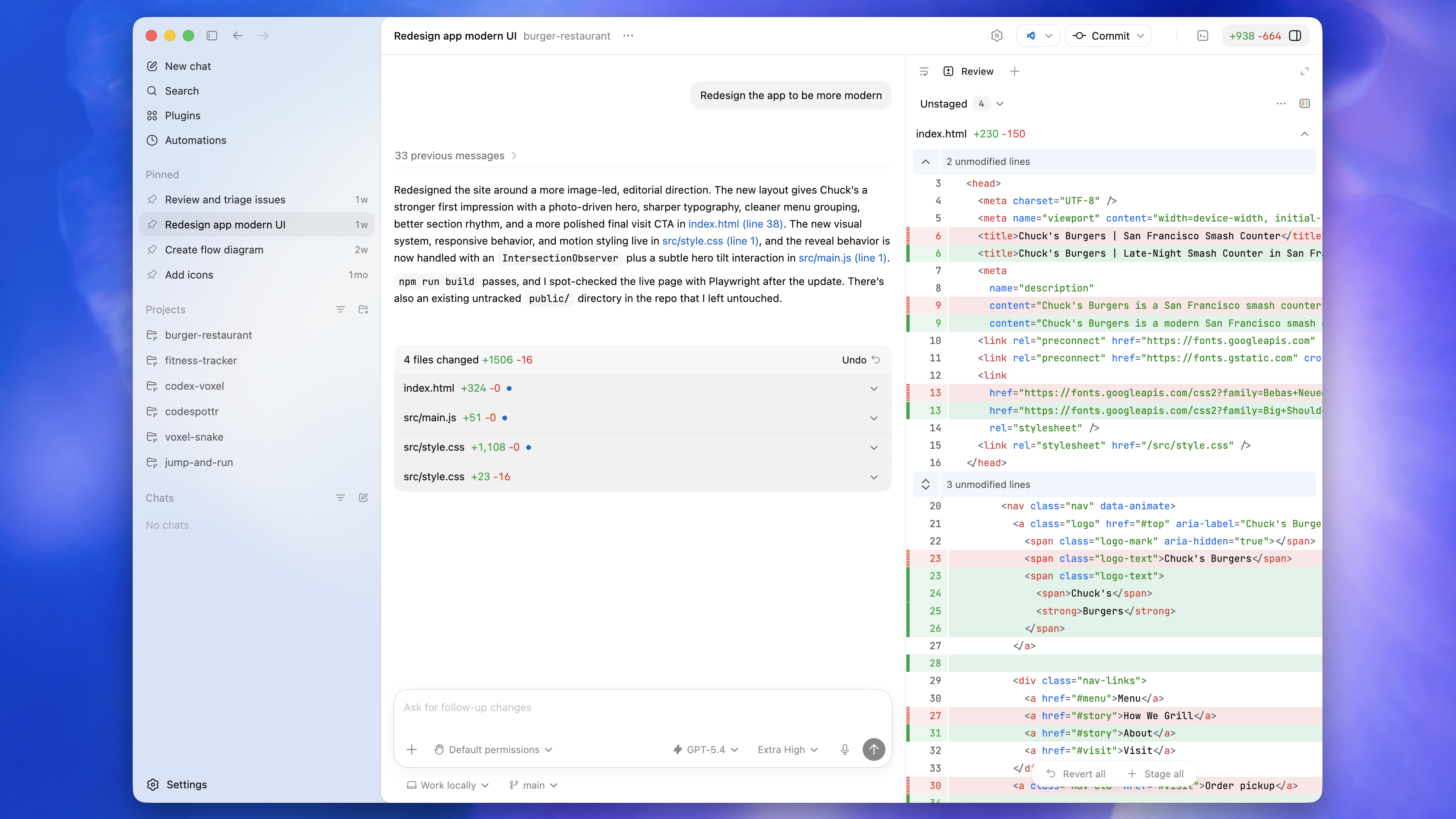
File links in the reply locate files. Ask for your actual idea.md link and open it to check. Red/green Review rows show changes, not the full file or running app. If opening is unavailable, find the reported path in your file manager.
04Not sure how? Follow each action
OpenClose
Ask for the two saved file locations.
- What should you see after this action?
- The files are located in your project.
- What should you do if that result is missing?
- If absent, return to the preceding step and confirm they were saved.
Open each file link. Compare idea.md with your idea and the rules file with your instructions.
- What should you see after this action?
- Both files are correct and can reopen.
- What should you do if that result is missing?
- If links fail, find the actual paths in your file manager.
05Words in this step
OpenClose
Markdown ↗
Plain-text notation for headings, lists, and other structure.
Use simple marks for headings and lists.
Absolute / Relative path ↗
A location measured from a root or current directory.
A full street address versus directions from here.
06How should you handle a problem here?
OpenClose
Previous files are missing
- Where should you look to understand the problem?
- Compare the tool and file manager project locations.
- Follow these steps to resolve the problem
- Return to the baseline step and inspect the reported actual paths; do not create another project.
- Expected recovery
- The saved brief and rules can be opened.
Edit the template with actual material, confirm, then copy into the current project conversation. Mark unknowns as undecided and replace examples as needed.
Confirmed · personalized content ready to copy
I am at “Inspect a file AI actually created”. Expected: Both idea.md and the rules file can be opened and match the previous step.. Actual screen/error: [add here]. Inspect existing files first. Give one reversible action at a time, its location, and expected result. Do not recreate the project or delete existing work.07Material for this step (fill or copy)
OpenClose
If you completed the individual prompts above, do not resend this full template. Use it to organize this step’s material when needed; replace bracketed fields, confirm and copy into the project chat.
Edit the template with actual material, confirm, then copy into the current project conversation. Mark unknowns as undecided and replace examples as needed.
Confirmed · personalized content ready to copy
First check access to idea.md. If missing or inaccessible, identify the prerequisite and owner action, then stop rather than invent prior work.
Only inspect the idea.md and project rules saved in the previous step. Return real paths and content summaries. Report missing files; do not create practice files or change existing files.Journal practice: fill or supplement this step
For this full-stack practice only: use this combined prompt, fill its fields and send it once instead of also sending the generic template. It does not authorize later steps.
Edit the template with actual material, confirm, then copy into the current project conversation. Mark unknowns as undecided and replace examples as needed.
Confirmed · personalized content ready to copy
First check access to idea.md. If missing or inaccessible, identify the prerequisite and owner action, then stop rather than invent prior work.
Only inspect the idea.md and project rules saved in the previous step. Return real paths and content summaries. Report missing files; do not create practice files or change existing files.

I selected the full-stack journal practice.
Identify the actual passages about frontend, backend, database and version-one scope in idea.md. Read only; do not invent missing text.08Check this before continuing
Both idea.md and the rules file can be opened and match the previous step.
09What should you do if the expected result is missing?
OpenClose
If absent, return to the preceding step and confirm they were saved.
Compare with an example (illustration, not your result)
Expect the actual personal brief, not instructions saying to write one.
Words in this milestoneIn order of appearance; open for the full explanation
References for this milestone
Open these when the question arises; they are not extra required actions.
- How can AI stay on task?
When sending a new task, requesting an edit or reporting an error.
My project material and backups
Material stays in this browser, not in project files or AI chat. Chinese and English template drafts are separate; project selection and progress are shared. Do not enter passwords or API keys here.
Includes idea, progress, template drafts, personal checks and selection conditions, but not project code. Restore creates a new draft and preserves existing projects.
Download/import unavailable? Restore backup text
Draft and progress stay in this browser.
Complete the actions in order; expand the matching checks and remedies if you get stuck.